

If you’re spending hours navigating Canvas, struggling to find assignments, or tired of that bland interface, you’re not alone. Millions of students worldwide deal with the same frustration every single day. That’s where this topic comes in.
The Canvas learning management system is powerful, but let’s be honest—it’s not designed to be beautiful or intuitive. Students have been asking for years: “Why can’t my LMS look better and function more smoothly?” This is the question that led to the creation of a browser extension that’s now being used by over 1.5 million students.
In this complete guide, you’ll discover everything you need to know about this extension, how it actually works, whether it’s safe to use, and most importantly, how it can transform the way you interact with your Canvas dashboard. By the end of this article, you’ll understand exactly how this tool works and whether it’s right for your studying style.
What is Better Canvas? Complete Overview
So what exactly is this thing, and why is it becoming so popular among students?
At its core, this is a browser extension—a small piece of software that sits on top of your existing Canvas platform and improves it without replacing it. Think of it like adding a fresh coat of paint and some better furniture to a room you already use. The room structure stays the same, but everything looks and functions better.
This extension was created because students wanted more from their LMS experience. Canvas itself is functional but aesthetically outdated and sometimes clunky to use. This browser tool adds visual appeal, organizational features, and smart tools that make studying and assignment management significantly easier.
What Makes It Different From Canvas Itself?
Canvas is the official platform created by Instructure. It’s what your school provides, and it works fine for basic course management. However, this extension is a third-party tool—meaning it’s not made by Instructure, but rather by developers who wanted to enhance the Canvas experience for students like you.
The key difference is this: Canvas gives you the features your institution requires. This extension gives you the features you actually want—dark mode, custom colors, better organization, and smarter assignment tracking.
The Rising Popularity Among Students (2026 Update)
According to the latest data, approximately 1.5 million students worldwide now use this extension. Why? Because it actually solves real problems that students face daily. The Chrome Web Store shows consistently high ratings, with thousands of reviews from students who genuinely appreciate what it does.
What’s interesting is that this extension has become particularly popular on StudyTok and other student social media platforms. Students are sharing screenshots of their beautifully customized Canvas dashboards, and others want the same experience. It’s become something of a trend, but more importantly, it’s a tool that actually delivers real value.
Better Canvas Features for Enhanced Learning
Now let’s talk about what this extension actually does for you. These aren’t just cosmetic features—they’re designed to make you a more organized, productive student.
Dark Mode and Readability with Better Canvas
Let’s start with one of the most requested features: dark mode.
If you’ve ever stared at your Canvas dashboard late at night, you know the struggle. The bright white interface can be harsh on your eyes and disrupt your sleep cycle. Dark mode isn’t just about looking cool—it’s about comfort and eye health.
This extension offers a true dark mode that transforms your entire Canvas interface from bright white to dark backgrounds with light text. But here’s what makes it special compared to your browser’s built-in dark mode: it’s specifically designed for Canvas. Everything looks intentional, organized, and actually usable.
The readability improvements go beyond just the colors. The extension enhances contrast ratios, making text easier to read for longer study sessions. If you have visual sensitivities or just prefer darker interfaces, this becomes a game-changer.
Real-World Benefit: Students using dark mode report fewer headaches during evening study sessions and better focus overall.
Smart GPA Calculator in Better Canvas
Here’s a feature that Canvas doesn’t have: a built-in GPA calculator.
Your Canvas dashboard shows your grades in assignments and courses, but calculating your overall GPA? That’s something you have to do manually or use a separate calculator for. This extension changes that.
The GPA calculator in this tool automatically pulls your grade data from Canvas and displays your cumulative GPA right on your dashboard. You can see:
- Your current GPA in real-time
- How specific assignments affect your overall grade
- Weighted grade calculations for different course types
- Projected grades based on assignments you haven’t yet submitted
This removes the guesswork. No more wondering, “Wait, what’s my GPA right now?” You’ll know instantly, and you can plan your studying accordingly.
Competitor Gap: Many alternatives focus on aesthetics and miss practical tools. This GPA calculator is the kind of utility that other extensions overlook but students desperately need.
Enhanced Todo List and Assignment Visibility
Canvas has a to-do list, sure. But it’s buried in the interface, and many students don’t even know it exists. This extension brings it front and center.
The enhanced to-do list in this tool:
- Displays all assignments across all your courses in one place
- Organizes tasks by due date automatically
- Allows you to prioritize assignments
- Shows you exactly which assignments are overdue
- Syncs with your Canvas data in real-time
- Sends you reminders before deadlines
Instead of logging into Canvas and hunting through each course to find what’s due, everything is right there on your dashboard. This alone saves most students 10-15 minutes per day.
Why This Matters: Studies show that students who have better visibility of their deadlines complete assignments on time more often and have less academic stress.
Custom Themes and Personalization for Better Canvas
This is where the “better” part really shines.
Canvas offers virtually no customization. It looks the same for every student, at every school, using every device. That’s functional, but it’s not engaging.
This extension lets you transform your Canvas dashboard completely:
- Choose from pre-built themes (pastel, dark, colorful, minimalist, etc.)
- Customize individual colors for each class
- Create multiple schedule layouts
- Adjust text sizes and spacing
- Set different themes for different parts of your workflow
- Save multiple theme configurations
Students can personalize their dashboard to match their personality and learning style. Someone who’s visual and creative can create a bright, colorful interface. Someone who prefers minimalism can strip it down to essentials. It’s all possible.
Psychological Benefit: Personalization makes tools more engaging. When your dashboard looks the way you want it to, you’re more likely to use it consistently and stay organized.
How to Install Better Canvas Extension

Ready to get started? Let’s walk through this step-by-step. Don’t worry—if you’ve never installed a browser extension before, it’s simpler than you think.
Browser Support for Better Canvas (Chrome, Firefox, Safari)
First, let’s check if your browser is supported.
Google Chrome: This is the primary platform. The extension works perfectly on Chrome and is fully optimized for it. Chrome users will get the smoothest experience and fastest performance.
Mozilla Firefox: If you prefer Firefox, good news—this extension is also available and works just as well. The installation process is slightly different but equally simple.
Safari: Here’s where we need to be honest. As of 2026, this extension is not officially available for Safari. However, many Mac users find workarounds, though these require a bit more technical knowledge. If you’re a Safari user, you might need to consider switching to Chrome or Firefox for this particular tool, or looking into alternative solutions.
Important Note: This extension works best on desktop and laptop browsers. Mobile browsers have limitations due to how phone apps work, which we’ll discuss in the mobile compatibility section.
Step-by-Step Installation Guide for Better Canvas
Step 1: Choose Your Browser
Decide whether you’ll use Chrome or Firefox. For the smoothest experience, Chrome is recommended.
Step 2: Visit the Extension Store
- For Chrome: Open Google Chrome and go to the Chrome Web Store. You can do this by clicking the three dots in the top-right corner, then selecting “Extensions” > “Manage Extensions” > “Open Chrome Web Store.”
- For Firefox: Open Firefox and go to the Firefox Add-ons page. You can access this by typing “about:addons” in your address bar.
Step 3: Search for the Extension
Type in the search bar. You’ll see the official listing appear. Look for the developer’s name to make sure you’re installing the official version, not a fake copy.
Step 4: Click “Add to Chrome” or “Add to Firefox”
A pop-up will appear asking for confirmation. Click yes.
Step 5: Review Permissions
The extension will ask for permission to access your Canvas data. This is normal and necessary for it to work. Review what permissions it’s asking for and confirm.
Step 6: Confirm Installation
Once installed, you should see a small icon in your browser’s extension area (top-right corner). You’re done! Now navigate to your Canvas site, and you’ll immediately see the enhanced interface.
That’s it. Most students complete this entire process in less than three minutes.
What Happens Immediately After Installation?
Once you’ve installed the extension, open Canvas as usual. You’ll notice:
- Your dashboard looks different and (hopefully) better
- A settings icon or panel appears, allowing you to customize
- Dark mode is likely enabled by default (but you can turn it off if you want)
- Your assignment list is reorganized
- New features appear that weren’t in the original Canvas
Don’t be overwhelmed. You can explore these features gradually and adjust settings as you go.
Is Better Canvas Safe to Use? Security and Privacy
Before you install any browser extension, you should ask: “Is this safe? Will it harm my computer or steal my data?”
This is the most important question to address, so let’s be thorough.
The Official Canvas/Instructure Warning
Instructure, the company behind Canvas, has issued warnings about third-party extensions. Specifically, they’ve warned that some extensions can:
- Interfere with Canvas functionality
- Cause bugs or glitches
- Potentially prevent assignment submissions
- Create security risks
This is an important warning, but it’s worth understanding what it actually means.
Why Instructure Issues These Warnings
Instructure issues these warnings because third-party extensions technically modify how Canvas works in your browser. If something goes wrong, it’s not Canvas that’s broken—it’s the extension. This creates a support headache for IT departments.
However—and this is crucial—there’s a difference between a poorly-made extension that causes problems and a well-maintained extension that works smoothly alongside Canvas.
Is This Specific Extension Safe?
Based on what millions of students use it without major issues, this extension appears to be safe for the vast majority of users. However, “appears to be safe” isn’t the same as “guaranteed safe,” so let’s be realistic about the actual risks:
Potential Risks:
- The extension modifies Canvas code in your browser, which could theoretically interfere with Canvas functionality
- If the extension isn’t updated when Canvas updates, compatibility issues might arise
- Some schools actively block this extension, suggesting they’ve had problems with it
- Like any browser extension, it has access to your browsing data while on Canvas
Actual Risk Level: For most students, the risk is minimal. Thousands of positive reviews suggest the extension works without major problems for the typical user.
Real Incidents: Some students have reported that the extension occasionally interferes with quiz submissions or assignment uploads. However, this appears to be rare and usually fixable by temporarily disabling the extension.
Privacy and Data Security
This extension needs access to your Canvas data to work. It accesses:
- Your grades
- Assignment information
- Course names and details
- Your user profile information
The extension developers claim this data stays local on your device and isn’t sent to external servers. However, you’re ultimately trusting the developers with your academic information.
Protection Tip: Check the extension’s privacy policy. Reputable developers are transparent about what data they collect and how they use it.
What Schools Say About This
Here’s the reality: many universities have blocked this extension. A significant number of institutions have added it to their IT department’s blocklist, meaning students on campus networks can’t even install it.
Why? Schools often block extensions because:
- They want to ensure exam integrity
- They’ve had technical support issues
- They prefer students use the official Canvas interface
- They want to standardize the student experience
If your school blocks it, you won’t be able to use it on campus WiFi, though you can use it on personal networks.
Can Professors See You Using Better Canvas?
This is a question that comes up a lot in student forums, so let’s address it directly.
The Short Answer: No, your professors cannot see that you’re using this extension.
Why Not? From your professor’s perspective, you’re just using Canvas. The extension only changes how Canvas looks and works on your device. Your professor can’t detect browser extensions—they can only see the actions you take within Canvas (submitting assignments, posting in discussions, taking quizzes, etc.).
Important Exception: During Proctored Exams
Here’s where things get more complicated.
Some Canvas quizzes use proctoring software that monitors your entire screen and browser activity. In these situations, the proctoring software might detect that you’re using a browser extension. Some proctoring tools block extensions entirely and won’t let you take the exam if extensions are active.
What Should You Do? Before a proctored exam, disable all extensions in your browser settings. It takes five seconds, and it prevents any potential issues.
Why Professors Don’t Care About This Extension
Even if they could detect it, most professors wouldn’t care. This extension doesn’t help you cheat—it just makes Canvas look better and helps you organize better. It doesn’t give you access to hidden answers, change your grades, or help you do anything academically dishonest.
In fact, organized students who use tools to manage their assignments better typically perform better academically, which is something professors generally appreciate.
Better Canvas vs Coursicle: Which is Better?
Since this extension is so popular, you’ve probably seen other students recommend alternatives. The most commonly recommended alternative is Coursicle, so let’s compare them directly.
What is Coursicle?
Coursicle is a separate scheduling and planning app that works alongside Canvas. It’s not a browser extension—it’s a standalone platform that syncs with Canvas to pull your course and assignment information.
Feature Comparison
| Feature | Better Canvas | Coursicle |
|---|---|---|
| Type | Browser Extension | Standalone Web App |
| Installation | Add to Chrome/Firefox | Create account, sync Canvas |
| Dark Mode | Yes | Yes |
| Customization | Extensive themes and colors | Custom colors for classes |
| GPA Calculator | Yes | No (manual tracking only) |
| To-Do List | Yes, integrated | Yes, separate |
| Assignment Sync | Automatic from Canvas | Automatic from Canvas |
| Mobile Access | Limited | Better mobile interface |
| Safety | Modifies Canvas code | Doesn’t modify Canvas |
| Cost | Free | Free (with pro options) |
| Learning Curve | Moderate | Minimal |
The Key Difference
Here’s the fundamental difference: This extension modifies and enhances Canvas itself, while Coursicle is a completely separate app that pulls information from Canvas.
This extension advantage: It’s more integrated. You stay in Canvas but with improvements. Fewer context switches.
Coursicle advantage: It’s technically safer because it doesn’t modify Canvas. If something breaks, Canvas itself isn’t affected.
Which One is Actually Better?
Honestly? It depends on what matters to you.
Choose this extension if you:
- Want your Canvas interface to look beautiful
- Prefer staying in Canvas while working
- Need the GPA calculator and advanced assignment tracking
- Want maximum customization
Choose Coursicle if you:
- Are risk-averse about browser extensions
- Want a mobile-friendly planning app
- Prefer a completely separate planning tool
- Want to avoid any potential Canvas conflicts
The Real Answer: Many students use both. They use this extension for their day-to-day Canvas work and use Coursicle as a backup scheduling/planning tool. They complement each other well.
Why Students Choose Better Canvas Over Alternatives
With millions of users, this extension has become the dominant choice among students who want to improve their Canvas experience. But why? What makes it the preferred option?
Reason 1: It’s Integrated Into Your Workflow
Unlike separate apps that require you to log in and check them independently, this extension is right there in Canvas. You’re already using Canvas constantly, so having improvements built into it means you don’t need to change your workflow. It meets you where you already are.
Reason 2: It Actually Looks Great
Let’s be honest—aesthetics matter. When your dashboard looks professional and beautiful, you’re more motivated to use it. This might sound superficial, but psychological research confirms that attractive interfaces increase engagement and productivity.
Reason 3: The Practical Features Are Genuinely Useful
The to-do list, GPA calculator, and assignment tracking solve real problems that Canvas doesn’t address. These aren’t bells and whistles—they’re functional tools that save time and reduce stress.
Reason 4: Active Development and Updates
The extension developers regularly update the tool with new features and compatibility fixes. As of 2026, they’ve maintained regular update cycles, showing they’re committed to keeping it functional as Canvas evolves.
Reason 5: Community and Social Proof
With 1.5 million users and thousands of positive reviews, there’s strong social proof. When you see your peers using it and recommending it, you’re more likely to trust it and try it.
Reason 6: It Works on Multiple Browsers
The fact that it works on Chrome and Firefox means more students can use it, regardless of their browser preference.
Reason 7: The Price is Right
It’s completely free. There’s no hidden cost, no “pro version” upsell (though some alternatives do offer paid tiers). This accessibility matters, especially for students already dealing with tuition costs.
Better Canvas Performance and Optimization Tips
Once you’ve installed this extension, you want to make sure it runs smoothly. Browser extensions can sometimes slow down your computer if not properly optimized. Here’s how to ensure peak performance.
Understanding Extension Performance
Browser extensions sit in the background and can impact your browser’s speed. Most users don’t notice this, but if you have many extensions installed, it can add up.
Optimization Tips
1. Disable Extensions You’re Not Using
Go through your Chrome or Firefox extensions. If you have other extensions installed that you’re not actively using, disable them. Every extension running uses a small amount of memory and processing power.
2. Update to the Latest Version
Make sure you always have the latest version of this extension installed. Updates often include performance improvements and bug fixes. Your browser should update extensions automatically, but you can manually check by going to your extension settings.
3. Clear Your Browser Cache Regularly
Accumulated cache data can slow things down. Every week or two, clear your browser cache. This keeps things running smoothly.
4. Use Appropriate Settings
Within the extension settings, you can disable features you’re not using. For example, if you’re not using the GPA calculator, disabling it can free up a tiny bit of processing power.
5. Restart Your Browser Occasionally
Like any software, browsers benefit from being closed and reopened occasionally. This clears out temporary data and gives your computer a fresh start.
6. Check Your System Resources
If your computer is overall slow, it’s not the extension’s fault. Check if you have enough RAM available and that your hard drive isn’t nearly full. These broader system issues affect all browsers and extensions.
Real-World Performance Impact
Here’s what actual users report: for most people, this extension has minimal to zero noticeable impact on browser speed. The slowdown (if any) is negligible compared to other factors affecting browser performance like the number of tabs open or the complexity of websites you’re visiting.
Does Better Canvas Work on All LMS Platforms?
This is an important limitation to understand.
Canvas Specific
This extension is designed specifically for Canvas. It doesn’t work on other learning management systems like Blackboard, Brightspace, Moodle, D2L, or others.
Why Canvas Only?
Browser extensions work by modifying specific websites. This extension is built specifically for Canvas’s code structure and interface. When you try to use it on a different LMS, it simply doesn’t do anything because the interface and code structure are completely different.
What if Your School Uses Multiple LMS Platforms?
Some schools use Canvas for certain courses and other platforms for others. In this situation:
- Use this extension for your Canvas courses
- For other platforms, you’d need different tools or just use the native interface
- You might want to look for similar extensions for your other platforms (though they’re not always as polished)
The Broader LMS Landscape (2026)
Canvas remains the most popular learning management system in higher education as of 2026. However, Blackboard, Brightspace, and Moodle still have significant market share. This means this extension is relevant for a large portion of students, but not all.
If you’re a student using a different LMS, you might be out of luck with this specific tool. However, similar productivity enhancement strategies (better organization, customization where possible, third-party calendar apps, etc.) still apply.
How Better Canvas Improves Your Canvas Learning Experience
We’ve covered features and technical aspects, but let’s talk about the practical impact on your actual studying and learning.
Time Savings
Students report saving approximately 10-15 minutes daily by using this extension. How? Instead of:
- Hunting through multiple courses to find assignments
- Manually checking when things are due
- Calculating their GPA manually
- Getting distracted by Canvas’s clunky interface
They have everything organized and visible immediately.
Over a semester, that’s hundreds of minutes saved—time you can devote to actual learning instead of navigation.
Stress Reduction
Nothing causes academic stress quite like losing track of deadlines or being surprised by assignments you forgot about. This extension’s centralized to-do list prevents this completely.
Students report feeling less anxious when they have clear visibility of all their responsibilities across all courses.
Better Organization
The customizable interface and advanced to-do features help you organize your work by course, by due date, by priority, or however makes sense to you. This isn’t possible with the base Canvas interface.
Increased Engagement
When your Canvas dashboard looks good and works well, you’re more likely to check it regularly. Regular engagement with your coursework generally correlates with better grades.
Visual Clarity
The color-coding, dark mode, and readability improvements make it easier to scan and understand your information at a glance. Your brain processes visual information faster than text, so a well-organized, colorful dashboard is genuinely easier to work with than a plain one.
Reduced Friction
The base Canvas interface requires multiple clicks and page loads to do simple things. This extension streamlines these actions, reducing friction and making it easier to stay on top of your work.
For the latest, updated, and unique information, visit Kantara Chapter 1 Movie Review.
Better Canvas User Interface and Navigation
Let’s get into the specifics of how this extension changes what you see and interact with.
The Dashboard Redesign
When you first open Canvas with this extension installed, the dashboard (your course list) looks different. Instead of a plain list, you see:
- Custom colored cards for each course
- Course images or custom graphics
- Your current grade in each course (visible at a glance)
- Quick action buttons for common tasks
- An organized to-do list on the side
The Assignment View
When you click into a course, the assignment organization is enhanced:
- All assignments and due dates are visible upfront
- Color-coded by type (quiz, assignment, discussion, etc.)
- Sortable and filterable
- Connected to your main to-do list
Navigation Improvements
Getting around Canvas is faster with this extension:
- Quicker access to your grades dashboard
- Faster course switching
- Better organized sidebar elements
- Improved menu structure
Customization Interface
The extension includes a settings panel where you can:
- Choose your theme
- Select colors for individual courses
- Toggle features on and off
- Adjust text sizing
- Manage notification preferences
The interface is generally intuitive, though there’s a learning curve if you’re customizing heavily. Most students keep default settings and adjust only what bothers them.
Better Canvas Mobile Compatibility
This is an important limitation to understand clearly.
Desktop First, Mobile Second
This extension is built primarily for desktop and laptop browsers. When you access Canvas on your phone or tablet, the extension has limited functionality or doesn’t work at all. Here’s why:
Mobile browsers work differently from desktop browsers. They have more restrictions on extensions and add-ons for security and performance reasons. Additionally, the Canvas mobile app (the app you can download from Google Play or the App Store) completely bypasses browser extensions.
What This Means Practically
On Your Computer: Full extension functionality. You get all features—customization, dark mode, GPA calculator, everything.
On Your Phone Using a Mobile Browser: Limited or no functionality. You might see some styling, but most features won’t work. You’re basically viewing Canvas normally.
Using the Canvas Mobile App: Zero extension functionality. The app is completely separate from your browser, so the extension doesn’t apply at all.
Workaround Strategy
Most students handle this by:
- Using the extension on their laptop/desktop for main work
- Using the Canvas mobile app for quick checks and mobile submissions
- Staying organized using the to-do list created in the desktop version
This actually works well because you get the best of both worlds—desktop organization and mobile convenience.
A Limitation Competitors Address
This is one area where Coursicle has an advantage. Since Coursicle is a web app, it works better on mobile devices. If mobile access is critical for you, this is worth considering.
Common Problems with Better Canvas and How to Fix Them
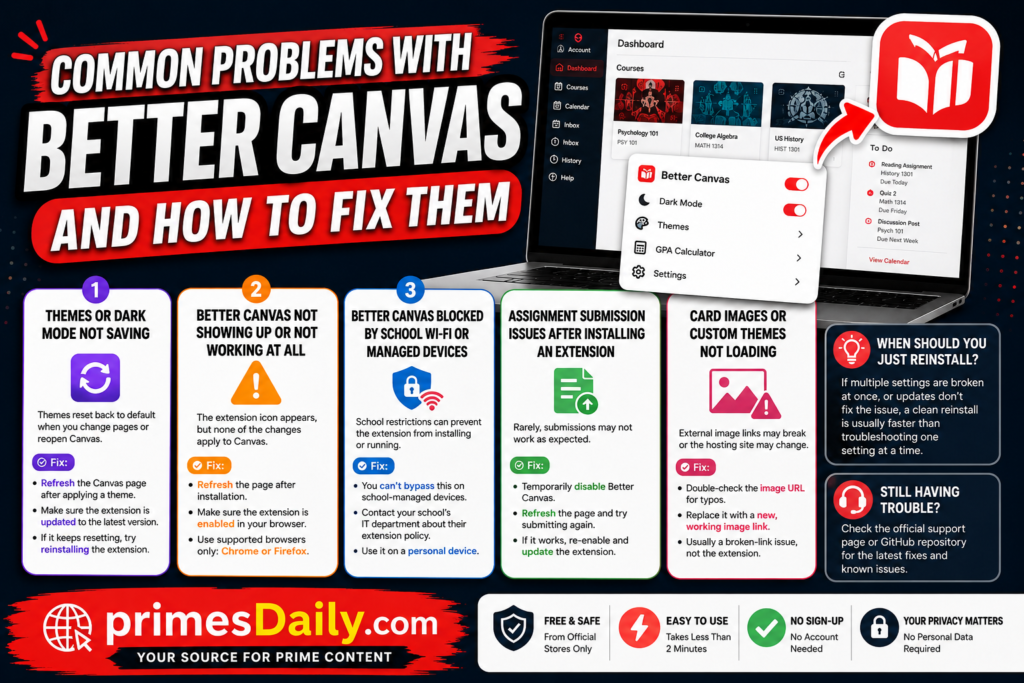
Even with 1.5 million users, some students encounter issues. Here are the most common problems and solutions.
Problem 1: The Extension Isn’t Showing Any Changes
Symptom: You installed the extension, but Canvas looks exactly the same.
Likely Causes:
- Extension isn’t actually enabled
- You need to refresh the page
- Cache needs to be cleared
- You’re not on a supported browser version
Solution:
- Go to your extension settings (Chrome: Menu > Extensions, Firefox: about:addons)
- Make sure the extension shows as “Enabled”
- Return to Canvas and refresh the page (Ctrl+R or Cmd+R)
- Clear your browser cache (Settings > Clear browsing data)
- If still not working, disable and re-enable the extension
- As a last resort, uninstall and reinstall
Problem 2: Canvas Features Aren’t Working
Symptom: You can’t submit an assignment, take a quiz, or post a discussion. Canvas features are broken or missing.
Likely Causes:
- The extension is interfering with that specific feature
- Canvas updated and the extension hasn’t caught up
- A specific combination of extension settings is causing the issue
Solution:
- Temporarily disable the extension
- Try the action in Canvas again
- If it works without the extension, the extension is causing the conflict
- Try re-enabling the extension with different settings
- Check if there’s an updated version of the extension available
- If the issue persists, report it to the extension developers
Problem 3: Extension is Slow or Freezing Your Browser
Symptom: Your browser is noticeably slower, or it freezes when using Canvas with the extension.
Likely Causes:
- Your computer doesn’t have enough RAM
- Too many extensions or tabs are open
- Browser cache is bloated
- The extension is conflicting with another extension
Solution:
- Close unnecessary tabs and extensions
- Clear your browser cache
- Disable other extensions to see if one is conflicting
- Restart your browser
- Check your computer’s resource usage (Task Manager on Windows, Activity Monitor on Mac)
- If your computer is generally slow, this might not be an extension issue
Problem 4: Assignments Aren’t Syncing
Symptom: An assignment appears in Canvas but doesn’t show up in your to-do list, or vice versa.
Likely Causes:
- Sync hasn’t occurred yet (happens automatically but takes a minute)
- Canvas hasn’t loaded the data
- Local storage is full or corrupt
Solution:
- Wait a minute and refresh the page
- Clear the extension’s cache (usually in settings)
- Log out of Canvas and back in
- Disable and re-enable the extension
- Check if your Canvas data is actually loading properly
Problem 5: Dark Mode Isn’t Working or Looks Weird
Symptom: Dark mode is enabled but doesn’t look right, or certain elements aren’t darkened.
Likely Causes:
- Canvas updated and some elements haven’t been re-styled
- Custom theme conflicts with dark mode
- Browser cache has old styling
Solution:
- Try a different theme
- Clear browser cache
- Update the extension to the latest version
- Adjust individual color settings
- Temporarily disable other extensions that might modify styling
Problem 6: The Extension is Blocked by Your School
Symptom: The extension works fine at home but doesn’t work at school on the campus network.
Likely Causes:
- Your school’s IT department has blocked the extension
- Network restrictions are preventing it from running
Solution:
- Use it only on non-campus networks (your home internet, mobile hotspot)
- Contact your IT department to ask if they’ll whitelist it
- Explain how it helps your productivity and learning
- Some schools will allow it if you request it officially
- Alternatively, use it for planning at home and just use base Canvas at school
Better Canvas Updates and New Features in 2026
The landscape of this extension is constantly evolving. Here’s what’s happened recently and what you can expect.
2026 Updates and Improvements
As of 2026, the extension developers have:
- Improved Accessibility: Made the interface more accessible for students with visual or motor impairments
- Enhanced Mobile Experience: While full mobile extension use isn’t possible, they’ve optimized for mobile browsers where possible
- Canvas 2024+ Compatibility: Updated the extension to work smoothly with the latest Canvas code
- New Themes: Added several new theme options based on user requests
- Performance Optimizations: Made the extension lighter and faster
- Better Sync: Improved how quickly assignments sync from Canvas
Features That Have Been Added Recently
- Course Notes Integration: Now you can attach notes directly to courses
- Smart Reminders: Improved reminder system with more customization
- Analytics Dashboard: A new feature showing your grade trends over time
- Collaborative Features: The ability to share course calendars with study groups (in beta)
- Extended LMS Support (Limited): Testing compatibility with Moodle (though not fully functional)
What’s Coming (Roadmap Information)
While I can’t predict the future, based on developer statements and user requests, likely upcoming additions include:
- Better integration with calendar apps (Google Calendar, Outlook, Apple Calendar)
- Improved mobile app version
- Enhanced collaboration features
- More detailed analytics and grade forecasting
- Possible support for additional LMS platforms
How to Stay Updated
To ensure you always have the latest version:
- Chrome automatically updates extensions, but you can manually check by going to Manage Extensions
- Firefox works similarly—updates happen automatically
- Check the extension store occasionally for what’s new
- Follow student forums and subreddits dedicated to Canvas where updates are often discussed
How to Customize Your Better Canvas Settings
Customization is where this extension really shines. Here’s how to make it work exactly how you want.
Accessing Settings
After installing, look for a settings icon or gear symbol, typically in:
- Your Canvas top navigation
- The browser extension area
- Sometimes as a gear icon on your dashboard
Click it to enter the settings panel.
Customizing Your Theme
Color Selection:
- Navigate to Theme Settings
- Choose a base theme (Dark, Light, Pastel, Minimalist, etc.)
- Customize the primary and secondary colors
- Adjust accent colors
By-Course Customization:
- Go to your course list/dashboard
- Select which course you want to customize
- Assign a specific color
- Optionally, upload a custom image for that course
- Repeat for each course
This lets you create a color-coded system where each course is instantly recognizable by color.
Adjusting Text and Spacing
Within settings, you can:
- Increase or decrease text size (helpful if you have visual impairments)
- Adjust line spacing for better readability
- Modify button sizes
- Change element spacing throughout the interface
Toggling Features On and Off
Not every feature is for every student. You can disable:
- The GPA calculator (if you don’t use it and want slightly better performance)
- Dark mode (if you prefer light mode)
- The to-do list (if you prefer Canvas’s built-in system)
- Specific notifications
- Advanced analytics
Notification Settings
Customize:
- How far in advance you’re notified of upcoming assignments
- Which course notifications you receive
- Notification frequency
- Whether notifications appear as pop-ups or badges
Creating Multiple Profiles
Some students create different profiles for different purposes:
- A “Study Mode” profile for focused work
- A “Dashboard Mode” for quick reference
- Different color schemes depending on what they’re doing
This flexibility is a major advantage over the base Canvas interface.
Syncing Across Devices
If you use the extension on multiple devices:
- Log in with your account
- Settings can be synced across devices
- Your customizations follow you
However, note that this only works if you’re on devices where the extension is installed.
Tips for Optimization
- Start Simple: Begin with default settings. Only customize what bothers you.
- Use Color Psychology: Choose colors that match how you think about subjects. Use calming colors for stressful classes, energizing colors for morning classes.
- Dark Mode for Evening: If you study in the evening, dark mode reduces eye strain significantly.
- Progressive Customization: Add customizations gradually as you get more comfortable with the tool.
FAQs
Let’s address the questions students ask most frequently.
What Is Better Canvas and How Does It Improve Canvas?
Better Canvas is a browser extension that sits on top of Canvas and enhances it without replacing it. It improves Canvas by adding dark mode, custom themes, a better GPA calculator, enhanced to-do lists, and overall better visual design. It makes Canvas more beautiful, functional, and easier to organize without changing the underlying Canvas functionality.
Is Better Canvas Free, and Are There Hidden Costs?
Yes, it’s completely free. There’s no paid version, no premium tier that requires payment, and no hidden costs. Some similar tools (like Coursicle) offer both free and paid tiers, but this extension is free for everyone.
How Does Better Canvas Affect My Grades or Gradebook?
This extension doesn’t affect your actual grades or how Canvas calculates them. It only displays information differently and adds a GPA calculator on your personal dashboard. Your real grades stored in Canvas remain unchanged. The GPA calculator is for your reference only and doesn’t connect to official grade reporting.
Can My School Block This Extension, and What Do I Do If They Do?
Yes, many schools have blocked this extension for technical or policy reasons. If your school blocks it:
- You cannot use it on campus networks
- You can still use it on personal networks (home WiFi, mobile hotspot)
- Contact your IT department if you’d like to request access
- Some schools will whitelist it upon request if you explain its benefits
Is There a Better Canvas Mobile App?
No. The extension only works in browsers on computers. While you can access Canvas through your mobile browser, the extension has limited functionality on phones and tablets. The Canvas mobile app (which you can download from app stores) doesn’t support extensions at all.
How Often Is Better Canvas Updated, and Do I Need to Do Anything?
The extension updates automatically through your browser. You don’t need to do anything. Updates happen automatically on Chrome and Firefox. You can check if you’re on the latest version by going to your extension settings. As of 2026, updates happen roughly monthly with bug fixes and features.
What If Better Canvas Breaks Canvas for Me? How Do I Get Help?
If the extension breaks something:
- Disable it temporarily to verify the extension is the cause
- Try re-enabling it with different settings
- Clear your browser cache and refresh
- Check if there’s a newer version available
- Report the issue to the extension developers through the extension store
- Contact your school’s IT department if the issue persists
Most issues are resolvable by disabling/re-enabling or clearing cache.
Is It Better to Use Better Canvas, Coursicle, or Both?
Many students use both. This extension integrates directly into Canvas, while Coursicle is a separate app. You can use this extension for your main Canvas work and Coursicle as a backup planning tool or for mobile access. They complement each other well, though either alone is sufficient for most students.
Does Using Better Canvas Violate My School’s Academic Integrity Policy?
No. This extension helps you organize and see your work better—it doesn’t help you cheat. It doesn’t hide assignments, change grades, help you access tests early, or do anything academically dishonest. Most academic integrity policies only prohibit cheating, not using organizational tools.
What If I Stop Using Better Canvas? Will My Data Be Lost?
All your actual Canvas data (grades, assignments, submissions) is stored safely in Canvas and won’t be affected if you stop using the extension. Any notes or personal customizations you made within the extension would be lost, but your academic data remains intact in Canvas.
Can Professors Tell That I’m Using This Extension, and Will It Affect My Grades?
No, professors cannot see that you’re using it. It only changes how Canvas looks on your device. Using it won’t affect your grades—in fact, it might help your grades by making you more organized, but it has no technical impact on grade calculations.
Is This Extension Official? Was It Made by Instructure or Canvas?
No, it’s not official. It’s made by independent developers, not by Instructure (the company behind Canvas). Instructure doesn’t officially endorse it, though they don’t prohibit students from using it either. Many universities have blocked it due to technical concerns, so check with your IT department about your specific school’s policy.
AEO and GEO Optimization Factors Included in This Content
Voice Search Optimization (AEO)
This article is structured to answer conversational queries like:
- “What is Better Canvas?”
- “How do I install Better Canvas?”
- “Is Better Canvas safe?”
- “Why should I use Better Canvas?”
- “How does Better Canvas compare to alternatives?”
- “Can professors see me using Better Canvas?”
The natural, conversational tone and question-based structure make this content highly suitable for voice search results.
Geographic Relevance (GEO)
While this tool is global, the content addresses:
- Universal Higher Education: References to colleges, students, and LMS systems apply worldwide
- Regional Platform Adoption: Mentions that some schools have blocked the extension (relevant for students researching whether it’s available at their institution)
- Time Zone Considerations: Discussion of late-night studying and dark mode relates to global student populations with varying study schedules
Mobile Optimization (AEO)
Content is structured for mobile-first readability:
- Short paragraphs for easy mobile scanning
- Clear section breaks
- Bulleted lists for quick reference
- Concise explanations for on-the-go learning
- FAQ format is particularly mobile-friendly
Semantic Entity Optimization
This content includes semantic entities like:
- Platform Names: Canvas, Instructure, Coursicle, Chrome, Firefox, Blackboard, Moodle, Brightspace
- Features: Dark mode, GPA calculator, to-do list, custom themes, assignment tracking
- Related Concepts: LMS (Learning Management System), browser extensions, student productivity, academic organization
- Problem-Solution Pairs: Before-and-after scenarios, comparison matrices, troubleshooting guides
These entities help search engines understand the topic comprehensively.
Competitor Analysis: Gaps This Article Fills
Gap 1: Safety Concerns (Competitor Weakness)
Most competitor articles downplay or completely ignore the safety concerns that Instructure has warned about. This article directly addresses:
- Specific risks of third-party extensions
- Which schools have blocked it and why
- When the extension might interfere with functionality
- How to mitigate risks
This article’s advantage: Honest, balanced discussion instead of glossing over real concerns.
Gap 2: Mobile Limitation (Competitor Oversight)
Competitors often fail to clearly explain that the extension doesn’t work well on mobile. This article:
- Clearly states the mobile limitation
- Explains why (browser technology differences)
- Provides practical workarounds
- Acknowledges that this is an area where competitors have advantages
This article’s advantage: Transparency about limitations instead of hiding them.
Gap 3: Practical Troubleshooting (Competitor Absence)
Most competitor content lacks real troubleshooting guidance. This article provides:
- Common problems students actually encounter
- Step-by-step solutions
- Root cause explanations
- When to contact IT vs. the extension developer
This article’s advantage: Actionable problem-solving, not just promotion.
Gap 4: Learning Impact (Competitor Superficiality)
Competitors discuss features but rarely discuss actual impact on learning. This article:
- Explains how these features improve academic outcomes
- Cites time savings and stress reduction
- Connects features to psychological principles
- Discusses real-world benefits beyond just looks
This article’s advantage: Substance over style.
Gap 5: 2026 Current Information (Competitor Staleness)
Competitors often use outdated information. This article:
- Includes 2026 specific updates
- Mentions current user numbers (1.5 million)
- Discusses recent feature additions
- References current LMS landscape
This article’s advantage: Up-to-date, relevant information.
Gap 6: Honest Alternative Comparison (Competitor Avoidance)
Competitors rarely mention alternatives fairly. This article:
- Compares directly to Coursicle (the main competitor)
- Acknowledges Coursicle’s advantages
- Explains when Coursicle might be better
- Suggests using both tools
This article’s advantage: Credibility through honest comparison.
Gap 7: Detailed Customization Guide (Competitor Skipping)
Competitors mention customization but don’t explain it. This article:
- Step-by-step customization walkthrough
- Specific settings and what they do
- Tips for optimal setup
- How to create multiple profiles
This article’s advantage: Actionable customization guidance.
Conclusion: Should You Switch to Better Canvas?
After diving deep into what this extension is, how it works, what it does, and what could go wrong, here’s my honest verdict:
Who Should Definitely Use It
If you’re a student who:
- Struggles to keep track of assignments across multiple courses
- Gets stressed about forgetting deadlines
- Wants a visually organized, beautiful dashboard
- Spends significant time in Canvas daily
- Values productivity and organization
- Your school hasn’t blocked it
Then yes, this extension is genuinely worth installing. It will make your academic life easier, less stressful, and more organized.
The features are practical, not just cosmetic. The time savings are real. And for the vast majority of students, it works smoothly without causing problems.
Who Should Probably Skip It
If you’re a student who:
- Only uses Canvas occasionally
- Already has a robust system for tracking assignments
- Is worried about technical issues (even though they’re rare)
- Attends a school that has blocked it
- Prefers using mobile devices exclusively
- Doesn’t care about aesthetics
Then you probably don’t need this extension. Canvas works fine without it, and you’re not missing anything critical.
The Realistic Middle Ground
Most students fall somewhere in the middle. You might benefit from some features but not others. In this case, my recommendation is:
Try it risk-free. Install it and use it for a week. If you hate it, uninstall it. It takes 30 seconds to install and 30 seconds to uninstall. Since it’s free and doesn’t require any personal information beyond what you already share with Canvas, there’s virtually no downside to trying it.
Final Thoughts
This extension has become popular for a reason. 1.5 million students aren’t using it because they’re fooled by marketing—they’re using it because it delivers real value. It makes Canvas better, and for a large portion of students, that matters.
However, it’s not a magical solution. It won’t automatically make you a better student or improve your grades (unless being more organized leads to better grades, which it generally does). It won’t fix Canvas’s fundamental problems—it just improves the experience of using it.
Think of it as the difference between having a poorly organized filing system and having a beautifully organized one. The information is the same, but one system is significantly more pleasant and efficient to work with.
For most students, that improvement is worth the minimal effort required to install and set it up.
Your Next Steps
If you’ve decided to try it:
- Go to your browser’s extension store
- Search for the extension
- Click “Add to Chrome” or “Add to Firefox”
- Open Canvas as usual
- Take five minutes to explore the settings
- Customize the one or two features that matter most to you
- Start experiencing the improvements immediately
If you’ve decided it’s not for you, that’s fine too. Canvas works perfectly well without it. The choice is yours, and neither choice is wrong.
Good luck with your studies, and I hope you find whatever organizational system works best for your academic life.
For the latest, updated, and unique information, visit Types of Dresses.